When the internet goes down at a business, everything seems to stop at once: card payments, phones, email, cloud software, online orders and sometimes even the security cameras. The natural reaction is to start unplugging things and pressing buttons. That can make the problem worse.
This guide gives you a practical sequence to follow when your business internet goes down, what to avoid, and how to prepare so the next outage does not stop your operation.
The Short Answer
- Confirm whether the problem affects one device or the whole office.
- Check the modem, router, switches and access points in order.
- Find out whether your internet provider has an outage.
- Avoid factory resets and improvised configuration changes.
- Switch to a secondary connection if you have one.
- Once service is back, document which operations depend on the internet and evaluate a backup connection.
Step 1: Confirm Whether It Is One Device or the Whole Office
The first question tells you where to look. Before touching any equipment, check:
- Is it only one computer, or are other computers affected too?
- Do phones on Wi-Fi have internet, while wired computers do not, or the other way around?
- Are cloud apps, websites and email all failing, or just one service?
- Are the card terminals, VoIP phones or other connected devices also offline?
If only one device is affected, the problem is probably that device, its cable, its Wi-Fi connection or its settings, not your internet service. If only one website or application is down, the issue may be with that service provider rather than your connection.
If everything is offline, move to the network equipment.
Step 2: Check the Modem, Router, Switches and Access Points
Work from the internet connection inward, one piece of equipment at a time:
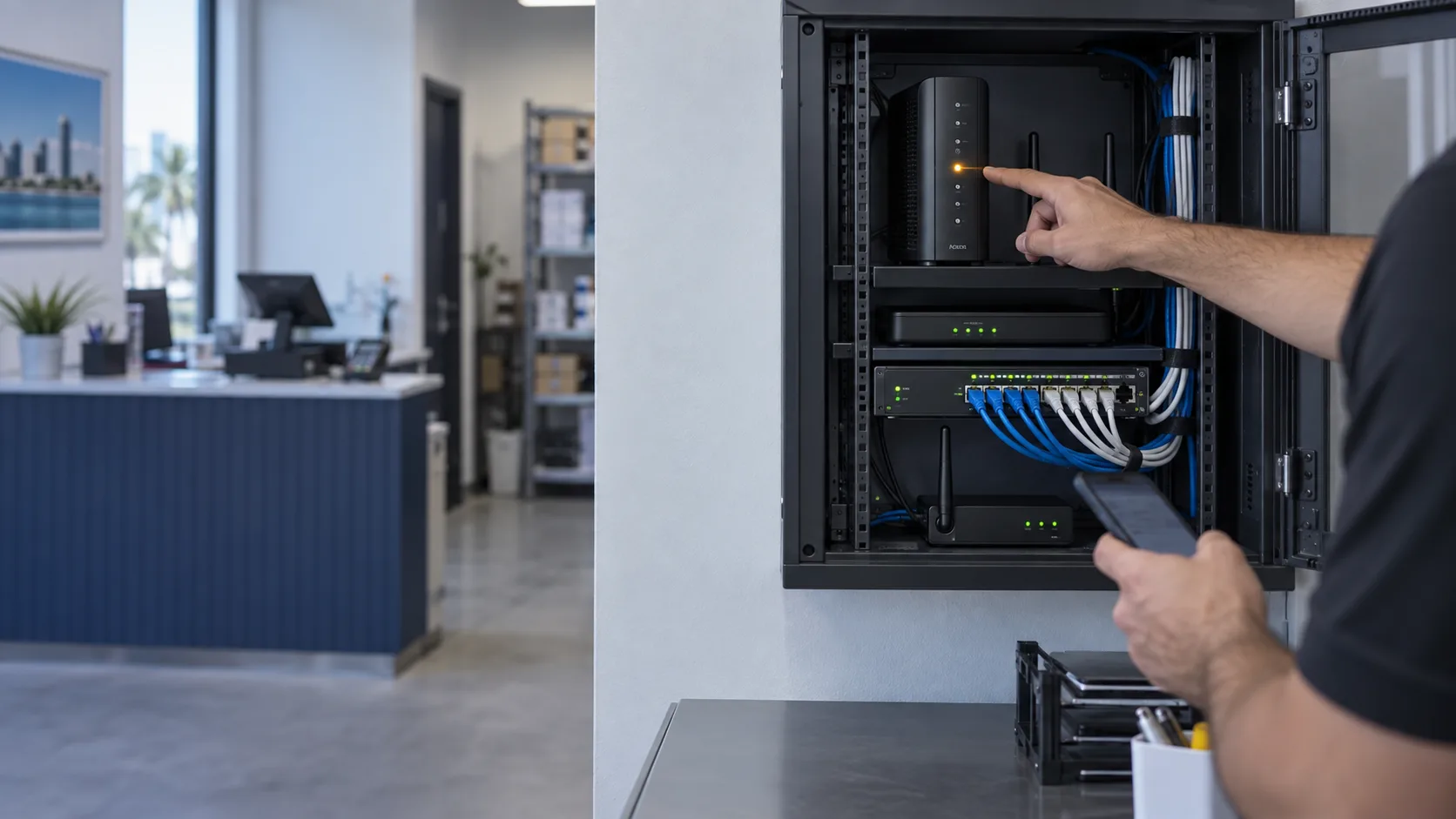
- Modem or provider equipment: check whether it has power and look at the status lights. A missing or unusual "online," "internet" or signal light often points to a provider or line problem.
- Router or firewall: confirm that it is powered on and that the cable from the modem is firmly connected to the correct port.
- Switches: make sure they have power and that link lights are active on the ports your devices use.
- Wi-Fi access points: check whether they are powered, especially if they receive power through a network cable from a switch.
- Power and cables: look for tripped power strips, a failed battery backup, loose cables or anything recently moved during cleaning or remodeling.
A single, controlled restart of the modem and then the router is reasonable: power off the modem, wait about 30 seconds, power it on, wait until it fully connects, then restart the router. Restarting everything repeatedly and at random rarely helps and makes it harder to know what changed.
Take a photo of the equipment lights and cable connections before you touch anything. It is useful information for your provider or technician.
Step 3: Check Whether Your Provider Has an Outage
Many business internet outages have nothing to do with your equipment. Using a phone on cellular data:
- Check your provider's outage page or app
- Call the provider's business support line
- Confirm that there is no billing or account issue
- Ask nearby businesses that use the same provider whether they are affected
Have your account number, service address and a description of the equipment lights ready when you call. If the provider confirms an outage, changing anything inside your network will not fix it. Your focus should move to keeping the business running until service returns.
Step 4: Avoid Destructive Resets and Improvised Changes
Under pressure, it is tempting to try anything. Some actions can turn a temporary outage into a much longer one:
- Do not press the reset pinhole on the router, firewall or modem. A factory reset can erase the configuration, including Wi-Fi networks, security settings, port rules and connections for POS systems, cameras and phones.
- Do not change settings you do not fully understand, such as IP addresses, DNS, VLANs or firewall rules.
- Do not rearrange cables between ports without knowing what each one does.
- Do not update firmware in the middle of an outage.
- Do not plug in a spare consumer router as a quick fix without knowing how it will affect the rest of the network.
This is also where configuration backups matter. If your router or firewall settings have been exported and stored safely, replacing failed equipment is much faster. Our small business data backup checklist explains why device and network configurations belong in your backup plan.
Step 5: Switch to a Secondary Connection If You Have One
If your business has a backup internet connection, now is the time to use it. Depending on how it was set up, that may happen automatically or may require a manual step.
- Automatic failover: confirm that traffic actually moved to the secondary connection and that critical systems, such as payments and phones, are working.
- Manual backup: follow the documented steps to activate it. If there are no documented steps, that is something to fix after the outage.
- Limited bandwidth: many backup connections, such as cellular or 5G, have less capacity or data limits. Prioritize payments, phones and essential applications, and pause large uploads, video streaming and nonessential devices.
If you do not have a backup connection, a phone hotspot may keep one or two computers working temporarily. Be careful with sensitive systems: check with your payment provider before connecting card terminals to any alternative network, and never connect business systems to unknown public Wi-Fi.
Step 6: Document Which Operations Depend on the Internet
An outage is one of the best moments to learn how dependent your business really is on its connection. Once service is back, write down:
- Card payments and POS systems
- VoIP phones and call routing
- Cloud accounting, scheduling, practice management or booking software
- Email and shared files
- Online ordering and delivery platforms
- Remote camera viewing and alarm or access control notifications
- Remote workers or other locations that connect to the office
For each item, note whether it can work offline, what the manual workaround is, and how much an hour of downtime costs the business. That list becomes the foundation for deciding how much redundancy makes sense.
It is also worth writing a simple outage plan: who calls the provider, where the account information is, how to activate the backup connection and how staff should handle payments or calls while the internet is down.
Step 7: Evaluate Backup Internet and Redundancy
If an outage stopped sales, appointments or client communication, a single internet connection is probably a business risk. Common redundancy options include:
- A secondary wired connection from a different provider, ideally using a different type of line
- A 5G or cellular backup connection for businesses where a second wired line is not practical
- Automatic failover equipment that switches connections without someone having to intervene
- Traffic priorities so payments, phones and critical applications get the bandwidth first
- Battery backup for the modem, router, switches and critical access points during short power interruptions
- Periodic failover testing so you know the backup works before you need it
The right setup depends on how much downtime your business can tolerate and what your current network looks like. Learn more about business internet backup and redundancy.
When the Problem Is Not Really the Internet
Sometimes what looks like an internet outage is actually a network problem inside the office: a failing router, an overloaded switch, weak Wi-Fi coverage or too many devices on a network designed for a smaller business.
Signs the problem may be internal:
- The provider says the connection is working normally
- Wired devices work, but Wi-Fi devices disconnect
- The problem affects only certain rooms or areas
- The internet works fine at some times of day and fails at others
- Restarting the router fixes it temporarily, but the problem keeps coming back
If that sounds familiar, read Why Your Business Wi-Fi Keeps Disconnecting and What to Check, or see our business Wi-Fi solutions.
When to Call a Technician
Consider calling for on-site help when:
- The provider confirms your service is working, but the office is still offline
- Network equipment shows no power, error lights or has visible damage
- The outage is affecting payments, phones or critical systems and you have no backup connection
- The same problem keeps coming back
- Someone already reset or changed equipment and now things are worse
Miami Tech Emergency provides on-site business network and internet support across Miami-Dade and selected Broward cities, and designs backup connections for businesses that cannot depend on a single line. You can explore everything we do in our business network services overview.
Frequently Asked Questions
What is the first thing to do when business internet goes down?
Confirm whether the problem affects one device or the entire office. That tells you whether to focus on a single computer, the internal network or the internet service itself.
Should I restart the router when the internet goes down?
A single, controlled restart of the modem and then the router is reasonable. Avoid pressing the reset button, which can erase the router's configuration.
How do I know if my internet provider has an outage?
Use a phone on cellular data to check the provider's outage page or app, or call their business support line with your account number and service address.
What is internet failover?
Failover automatically switches your business to a secondary connection, such as another provider or a 5G backup, when the primary connection stops working.
Is a phone hotspot a good backup for a business?
It can help temporarily for one or two computers, but it is not a reliable solution for a whole office, card terminals or phones. A properly configured backup connection is more stable and secure.
Why does my business internet keep going down?
Repeated outages can come from the provider, but they are often caused by aging equipment, overloaded networks, poor Wi-Fi coverage or configuration problems inside the office. An evaluation of the network can identify the cause.
Do Not Wait for the Next Outage
If your business depends on its internet connection to sell, communicate or serve clients, the best time to plan for an outage is before it happens. Tell us how your business uses its connection and we will help you evaluate where the risks are and what level of redundancy makes sense.
Contact Miami Tech Emergency or call (305) 873-0480. Hablamos Español.