Most small businesses know they should back up their data. Fewer know exactly what should be backed up, how often, and whether those backups would actually work on the day they are needed.
This checklist covers the data a small business should protect, the difference between local and cloud copies, how often to run backups, why restore testing matters, and how backup differs from disk cloning and data recovery.
The Short Answer
- Back up everything you would struggle to recreate: operational documents, accounting files, customer information, application data, email and device configurations.
- Keep more than one copy in more than one place: at least one local backup and one off-site or cloud backup.
- Match the backup frequency to how much work you can afford to lose.
- Test your restores. A backup you have never restored is an assumption, not a plan.
The Small Business Backup Checklist
Use this list to identify what your business needs to protect. Not every item will apply to every business, but most offices will find something they had not considered.
Operational Documents
- Contracts, proposals and agreements
- Standard operating procedures, templates and internal forms
- Employee files and HR documents
- Marketing materials, logos, photos and brand assets
- Shared folders and files stored on individual computers
Pay special attention to files saved on desktops and local "Documents" folders. They are often left out of backups because nobody realized they were important until the computer failed.
Accounting and Financial Files
- Accounting software company files and local databases
- Invoices, receipts and purchase records
- Payroll records
- Bank statements and reconciliations
- Tax returns and supporting documents
If your accounting software runs in the cloud, check whether you can export your data regularly. Relying entirely on a single provider's platform is not the same as having your own copy.
Customer Information
- Customer lists, contact details and CRM data
- Client files, case files or project records
- Signed forms, approvals and correspondence
- Order history and service records
Customer data deserves extra care. Backups that contain personal or sensitive client information should be encrypted and stored somewhere with controlled access.
Application Data
- Databases used by line-of-business software
- Practice management, scheduling or booking systems stored locally
- Point-of-sale settings, product lists and reports that are not stored in the cloud
- License keys, installers and activation details for important software
Many businesses do not know where their application actually stores its data. If a program runs on one office computer, find out whether its data lives on that machine, on a server or with the software vendor, and whether a supported backup method exists.
- Mailboxes for key users and shared addresses
- Important archived messages and attachments
- Local email data files on older setups
Cloud email platforms are highly reliable, but their built-in recovery options for deleted items are usually limited in time. A separate backup helps protect against accidental deletion, a compromised account or a former employee's mailbox being removed too early.
Device and Network Configurations
- Router and firewall configuration exports
- Wi-Fi network names, settings and access point configurations
- Switch and VLAN settings
- Security camera and NVR settings
- Printer and scanner configurations
- A simple record of which devices exist and how the network is organized
These are easy to forget because they rarely change. But when a router fails or a device is replaced, rebuilding the configuration from memory can take hours. Administrator credentials should be stored securely in a password manager, not in a document on a shared desktop.
Local and Cloud Backups: Why You Need Both
Each type of backup protects against different problems.
- Local backups (an external drive or a network storage device in the office) are fast to restore, especially when a large amount of data or a full computer needs to be recovered.
- Cloud or off-site backups protect against events that affect the whole office, such as theft, fire, flooding or storm damage.
A widely used guideline is the 3-2-1 approach: keep three copies of your data, on two different types of storage, with one copy stored off-site. For a Miami business, the off-site copy matters even more during hurricane season, when a single event can affect the office and every device in it.
One important distinction: file syncing is not the same as backup. Services that sync folders between computers and the cloud are useful, but if a file is deleted, overwritten or encrypted by ransomware, that change can sync everywhere. A real backup keeps previous versions so you can go back to a point before the problem happened.
How Often Should You Back Up?
The right frequency depends on one question: how much work could your business afford to lose? As a starting point:
- Accounting, customer and application data: at least daily, and more often if these records change throughout the day.
- Active shared documents: daily, or continuously with version history.
- Email: daily.
- Full computer or system images: on a regular schedule and before major changes, such as updates, upgrades or migrations.
- Device and network configurations: after every change, plus a periodic copy.
Also decide how long backups should be kept. Keeping several versions over days and weeks allows you to recover from problems that are not noticed immediately, such as a file that was damaged two weeks ago.
Whenever possible, backups should run automatically. Manual backups depend on someone remembering, and that is usually the first thing that stops happening when the business gets busy.
Test Your Restores
Many businesses discover their backup was not working only when they try to use it. Restore testing turns a backup from something you hope works into something you know works.
- Restore a single file and confirm it opens correctly
- Restore a full folder to a different location
- Check that the most recent backup actually contains recent data
- Confirm that critical application data can be restored and used
- Review backup reports or alerts for failed jobs
- Write down how long a full restore would take
A simple restore test every few months is enough for most small businesses, as long as someone is clearly responsible for it.
Backup vs. Disk Cloning vs. Data Recovery
These three terms are often confused, but they solve different problems.
Backup
A backup is an ongoing copy of your data, usually with multiple versions, created on a schedule. Its purpose is to let you recover files or systems after deletion, hardware failure, theft or ransomware. It is preventive. Learn more about our data backup and protection setup.
Disk Cloning
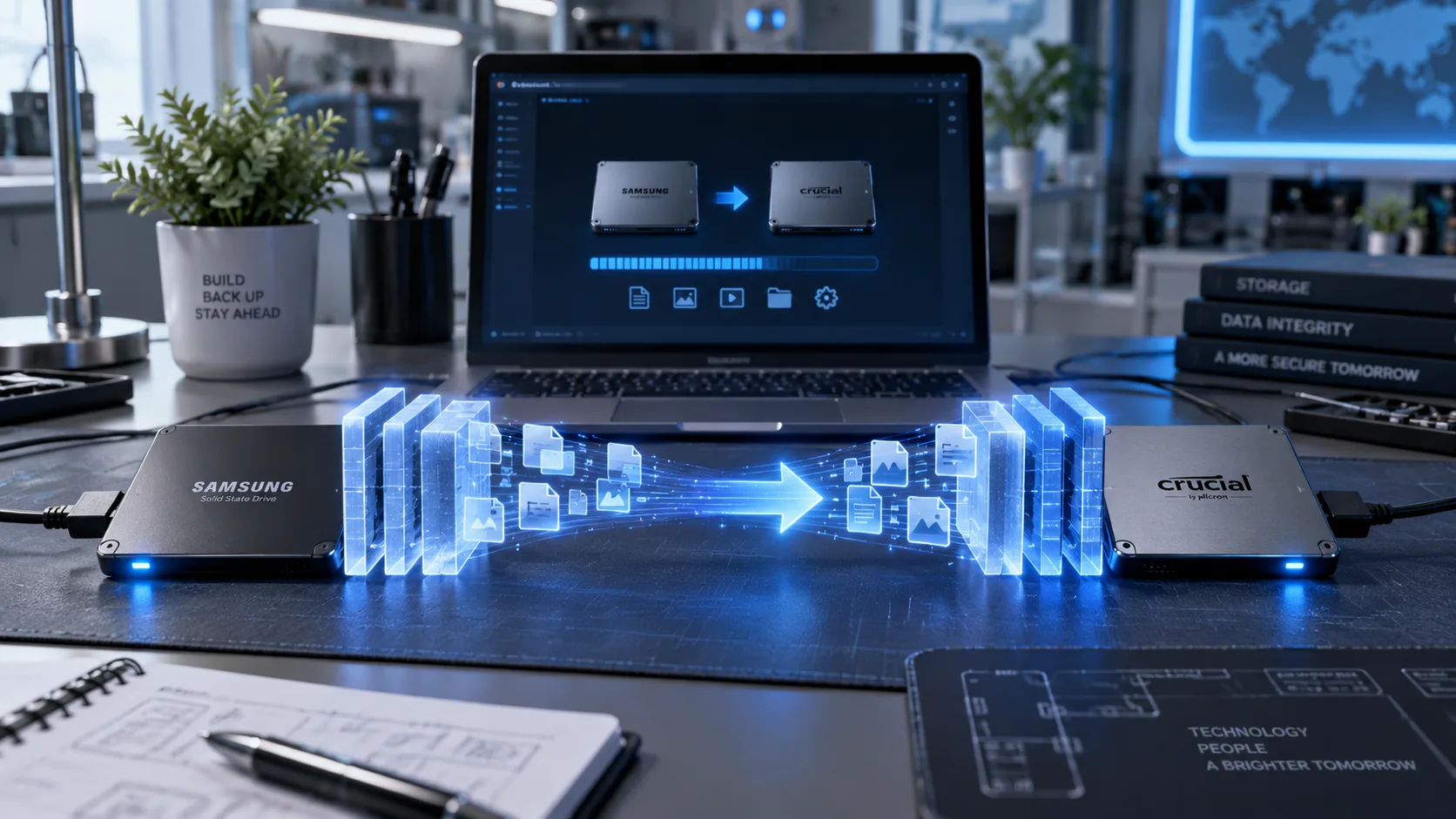
Disk cloning creates a complete copy of a drive at a specific moment, including the operating system, installed programs, settings and files. It is especially useful when replacing a drive, upgrading to an SSD or preserving a specialized workstation before changes. A clone is a snapshot, not an ongoing backup. See our hard drive and SSD cloning service or read What Is Disk Cloning? When Making a Complete Copy of a Drive Makes Sense.
Data Recovery
Data recovery is what happens when there is no usable backup and data has been lost because of drive failure, corruption or accidental deletion. It is reactive, results are not guaranteed, and it is almost always more stressful than restoring from a backup. If you are already in that situation, see our data recovery service and stop using the affected device until it is evaluated.
Common Backup Mistakes
- Keeping the only backup drive plugged in next to the computer it protects
- Backing up the server but not the files saved on individual computers
- Assuming cloud syncing is a complete backup
- Never checking whether backup jobs are completing
- Never testing a restore
- Forgetting email, application databases and device configurations
- Leaving backups unencrypted when they contain sensitive client information
- Having no one clearly responsible for the backup process
A Quick Self-Check for Your Business
If you cannot confidently answer yes to these questions, your backup plan probably needs attention:
- Do we know where all of our important data is stored?
- Is every important computer and system included in a backup?
- Do we have both a local copy and an off-site or cloud copy?
- Do backups run automatically?
- Can we restore previous versions of files?
- Have we tested a restore in the last few months?
- Would we still have our data if the office were inaccessible after a storm?
How We Help Miami Businesses Protect Their Data
Miami Tech Emergency sets up practical backup solutions on-site for businesses and professionals across Miami-Dade and selected Broward cities. We review where your data lives, recommend a local, cloud or combined approach that fits your environment and budget, set it up and verify that it works.
If you are replacing a drive or computer, we can also clone the existing system. And if data has already been lost, we can evaluate whether recovery is possible.
Frequently Asked Questions
What data should a small business back up?
Operational documents, accounting and financial files, customer information, application data, email, and device and network configurations. In practice, anything that would be difficult, expensive or impossible to recreate.
Is cloud storage enough to back up my business?
Not by itself. Cloud syncing services can copy deletions, overwrites and ransomware-encrypted files. A proper backup keeps previous versions, and combining a local and an off-site copy protects against more types of problems.
How often should a small business back up its data?
Critical data such as accounting, customer records and application databases should be backed up at least daily. The right frequency depends on how much work your business could afford to lose.
How often should backups be tested?
A restore test every few months is a good baseline for most small businesses, plus a check after any major change to your systems.
Is disk cloning the same as a backup?
No. A clone is a complete copy of a drive at one moment in time, useful for upgrades and migrations. A backup is an ongoing, scheduled process that keeps multiple versions of your data.
What if we already lost data and have no backup?
Stop using the affected device to avoid overwriting data, and have it evaluated as soon as possible. Data recovery may be possible, but results depend on the type and extent of the damage.
Find Out What Your Business Is Missing
If you are not sure what your business is backing up, or whether it would actually work, tell us about your setup. We will help you identify the gaps and put a reliable backup plan in place before something goes wrong.
Contact Miami Tech Emergency or call (305) 873-0480. Hablamos Español.