Most people do not think about cloning a hard drive until they suddenly have a very specific problem.
Maybe your computer is completely full.
You want to replace the 256 GB SSD with a 1 TB or 2 TB drive, but the computer contains years of applications, configurations, files, passwords, drivers, and settings.
The idea of starting over makes you nervous.
Or maybe the problem is much more unusual.
The computer runs specialized software that took years to configure.
The company that installed it no longer exists.
Calling the vendor again could cost thousands of dollars.
Maybe the drive is inside an NVR or another specialized device and contains information you need to preserve.
Maybe the computer is being retired, transferred to another employee, delivered to an attorney, or changed in some way, but you want a complete copy of what existed before anybody touches it.
These are very different situations.
But they can all lead to the same question:
Can we make a complete copy of this drive before we change anything?
Often, yes.
That is where disk cloning becomes extremely useful.
What Is Disk Cloning?
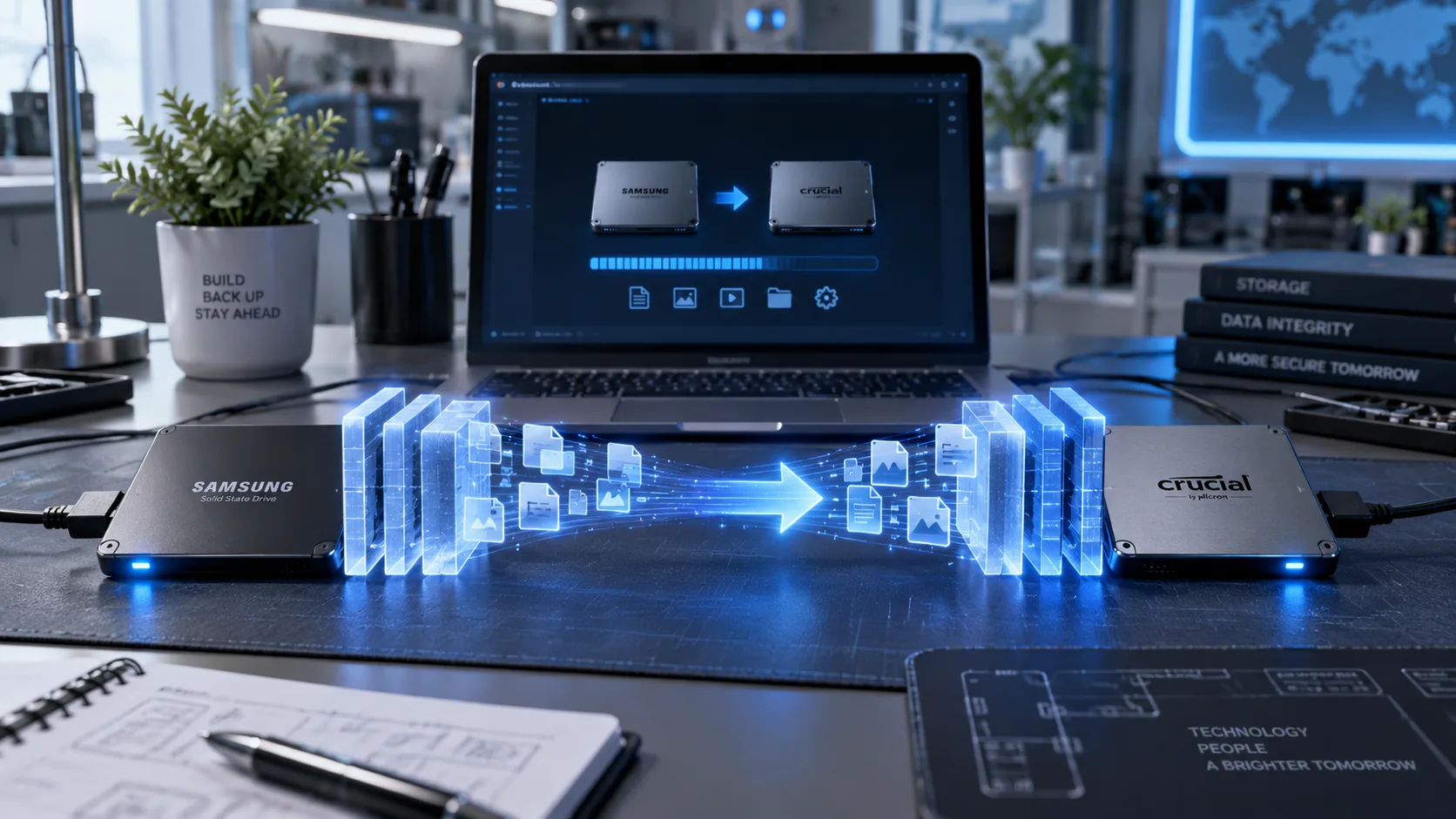
Disk cloning is the process of duplicating the contents and structure of one storage drive onto another drive.
That is very different from opening File Explorer and copying your Documents folder.
Depending on the type of clone and the purpose of the project, cloning can preserve things such as:
Windows
Installed applications
User profiles
Settings
Files
Partitions
Boot information
Recovery partitions
Local databases
Application configuration
Specialized software environments
The objective is often to reproduce the existing storage environment rather than rebuilding everything manually.
For a normal Windows migration, that can mean replacing an old drive and booting from the new one with your familiar computer environment still there.
For preservation projects, the objective may instead be to create a separate copy of the original storage before changes are made.
Copying Files and Cloning a Drive Are Not the Same Thing
Suppose your computer contains:
Documents Pictures Desktop DownloadsYou could connect an external drive and copy those folders.
That is a backup of selected files.
But what about:
Windows itself?
The applications you installed?
Software licenses?
Drivers?
Hidden partitions?
Custom configuration?
Local databases?
Application-specific files buried somewhere you do not know about?
Those may not be included in a normal file copy.
A disk clone approaches the problem differently.
Instead of asking:
Which files should we copy?
we are asking:
How much of this storage environment do we need to reproduce?
That distinction is incredibly important in specialized systems.
Use Case #1: Your Computer Is Out of Space
This is probably the most common reason people ask about cloning.
You purchased a computer several years ago with:
256 GB SSD
At the time, that sounded like plenty.
Now Windows says:
12 GB free.
Everything is constantly full.
You delete temporary files.
You empty Downloads.
Two weeks later, you are full again.
The obvious solution is to install a larger SSD.
But then comes the frightening part:
What happens to everything already on my computer?
If the existing Windows installation and source drive are healthy, cloning can often move the existing environment onto a compatible larger drive.
For example:
256 GB → 1 TB
or:
500 GB → 2 TB
The larger drive can then become the computer's primary storage.
Windows, applications, user accounts, settings and files can remain intact rather than requiring the entire computer to be configured from scratch.
Our Hard Drive & SSD Cloning service is designed specifically for situations where preserving the existing environment is more valuable than starting over.
The Fear of Upgrading Is Completely Understandable
Sometimes the computer itself is perfectly fine.
The owner simply refuses to upgrade it.
Why?
Because everything works.
There may be:
Years of files
Bookmarks
Email configuration
Accounting software
Printer settings
VPN configurations
Saved credentials
Specialized applications
Personal workflow settings
Starting from a clean Windows installation can mean hours or even days of rebuilding everything.
And sometimes you discover only afterward that one critical application does not install the same way anymore.
When the existing environment is healthy, cloning can remove much of that uncertainty.
Use Case #2: Specialized Software You Cannot Easily Reinstall
This is where disk cloning becomes much more valuable than the cost of the storage device itself.
Imagine a workstation running software for:
Manufacturing
Medical equipment
Engineering
Point-of-sale systems
Building management
Access control
Photography
Audio production
CNC equipment
Scientific equipment
Specialized accounting
Legacy databases
Security systems
The software may have been installed ten years ago.
Nobody remembers how.
Maybe there was a technician who configured everything originally.
That person retired.
Maybe the vendor charges several thousand dollars to reinstall it.
Maybe the license activation server no longer exists.
Maybe the company itself no longer exists.
Suddenly that old 500 GB drive is not worth $30.
It contains the only working copy of a business environment that may cost thousands of dollars — or be impossible — to reconstruct.
In cases like that, cloning is less about “upgrading a disk.”
It is about preserving a working system.
Sometimes the Computer Is Worth Less Than What Is Installed on It
This happens more often than people expect.
You might have a ten-year-old workstation worth $200.
But replacing the configuration could cost:
$5,000
or:
$20,000
or perhaps cannot realistically be recreated at all.
From a business continuity perspective, the drive may therefore be more valuable than the computer itself.
Before replacing, upgrading, repairing, or experimenting with systems like that, creating a preservation copy can be a very sensible precaution.
Use Case #3: Before Making a Risky Change
You do not need to wait until something breaks.
Cloning can also be useful before a major change.
For example:
Operating-system migration
Major Windows upgrade
Specialized software upgrade
Storage replacement
Hardware migration
Computer retirement
System reconfiguration
Vendor maintenance
Imagine that a vendor is about to update a critical application.
Everything currently works.
After the update, it does not.
Having a preserved copy of the previous storage environment can sometimes provide options that would otherwise disappear the moment changes are made.
This does not replace a proper data backup strategy, but it can provide a useful point-in-time preservation of a particular system.
Disk Cloning Is Not the Same Thing as a Backup
This distinction is extremely important.
A clone is typically a copy of a drive at a particular moment.
A backup system is designed to protect changing information over time.
If you clone your drive today and delete an important file six months from now, your six-month-old clone may not help with the new files created since then.
A real backup strategy may maintain:
Current copies
Previous versions
Multiple restore points
Automatic schedules
Separate storage
Think of cloning as:
Preserve this storage environment.
Think of backup as:
Continuously protect my information.
For important business data, you may need both.
Use Case #4: Replacing a Computer Without Losing the Original State
Imagine an employee has used a computer for five years.
Now the employee leaves.
The company wants to give the machine to somebody else.
Normally you might simply erase it and reinstall Windows.
But what if six months later someone asks:
Where was that project file?
Or:
What software was configured on that workstation?
Or:
We need something from the previous user's environment.
If the business has a legitimate reason and authorization to preserve that information, a drive copy can provide a snapshot before the original machine is repurposed.
Then the computer itself can move on to its next use.
This can be useful when retiring:
Employee computers
Specialized workstations
Accounting machines
Project systems
Administrative computers
Of course, any preservation involving employee or client data should follow the organization's privacy, legal, and retention policies.
Use Case #5: Preserving a System Before You Dispose of It
Sometimes the computer is simply finished.
Maybe you are recycling it.
Maybe you are selling it.
Maybe the hardware is too old to justify keeping.
But you are not completely comfortable destroying everything yet.
Perhaps there is a five-year project history stored on it.
A clone or other appropriate backup can allow you to preserve what matters before the original storage is securely erased or destroyed.
The important part is deciding what needs to be retained before the original system disappears.
Use Case #6: NVRs, CCTV Systems and Other Specialized Recorders
Hard drives are not used only inside computers.
Surveillance systems commonly use HDDs inside:
NVRs
DVRs
Security-camera recorders
Video appliances
Those drives may contain weeks or months of recorded video.
And sometimes there is an incident.
A theft.
An accident.
Property damage.
An insurance claim.
A workplace dispute.
Now the recording matters.
Depending on the recorder, simply removing the drive and plugging it into Windows may not produce anything useful.
Surveillance systems can use proprietary filesystems, databases, indexes, recording structures, or formats that normal desktop operating systems do not understand.
That is why surveillance preservation requires understanding the recorder and the reason the information needs to be preserved.
Our Security Camera Video Backup & Evidence Preservation service focuses specifically on preserving important surveillance footage before it is overwritten, the recorder is changed, or the original storage environment is modified.
Why Would You Clone an NVR Drive?
There are situations where retaining the original storage state may be useful.
For example:
The NVR is being replaced
The original drive must be removed
The recorder configuration is about to change
An incident is under review
Additional analysis may be necessary later
You need to preserve a point-in-time copy before moving forward
However, surveillance systems are a perfect example of why not every cloning job is identical.
A computer migration and evidence preservation have very different objectives.
Use Case #7: Insurance, Attorneys and Investigations
Now we enter a different category entirely.
Imagine a storage device contains information related to:
Litigation
An insurance claim
An internal investigation
A workplace incident
Surveillance footage
Business records
Potential evidence
Someone may say:
Just clone the drive before we give them the computer.
That can be sensible from a preservation perspective.
But there is an important distinction.
A normal technical clone is not automatically a forensic image.
If the information could become legal evidence, the requirements may be significantly more rigorous.
A Normal Clone vs. a Forensic Image
For normal computer migration, the objective may simply be:
Make the replacement drive work like the original.
For forensic preservation, the objective is different.
A forensic workflow may involve:
Bit-for-bit imaging
Write-blocking
Cryptographic hashes
Documentation
Evidence handling procedures
Chain-of-custody records
Preservation of metadata
Verification that the source was not modified
Those requirements matter because somebody may eventually need to demonstrate that the preserved data accurately represents what was on the original device.
Miami Tech Emergency can provide technical cloning and preservation support within the scope of the service, but when a device is potential legal evidence, the attorney, investigator, insurer, or qualified forensic examiner should determine the required forensic methodology.
Do not assume that an ordinary migration clone satisfies evidentiary requirements.
Hashes: How Copies Can Be Verified
For preservation work, you may hear terms such as:
MD5
SHA-256
or simply:
hash
A cryptographic hash acts like a digital fingerprint calculated from data.
If two copies produce the expected matching hash under an appropriate imaging workflow, that can help verify that the copied data has not changed.
Hash verification is extremely useful in preservation and forensic environments.
It is generally unnecessary for someone simply upgrading a healthy laptop from a 500 GB SSD to a 1 TB SSD.
Again:
The correct procedure depends on why the copy is being created.
Use Case #8: You Need to Hand Over the Original Device
Imagine an insurance company, attorney, investigator, vendor, or another authorized party needs the original computer or storage device.
But you are not comfortable losing your only copy of everything.
Creating an appropriate preservation copy before the device leaves your control may be prudent.
This is particularly important if you will no longer be able to access the original afterward.
But if the device is evidence, stop before making changes and coordinate with the authorized professional handling the matter.
Sometimes the correct action is to clone it.
Sometimes the correct action is to do absolutely nothing until a forensic examiner takes custody.
The context matters.
Use Case #9: A Drive Is Starting to Fail
This one requires caution.
Imagine the computer still works, but you begin noticing:
SMART warnings
Slow reads
Occasional freezes
Bad sectors
Unusual behavior
Drive detection problems
You may think:
Let's clone it before it dies.
Sometimes that is exactly the right strategy.
But not always.
A seriously failing drive should not necessarily be subjected to ordinary cloning software repeatedly trying to read every problematic sector.
That can make a bad situation worse.
If the source drive:
Clicks
Disappears intermittently
Stops spinning
Produces severe read errors
Contains irreplaceable files
the priority should shift from normal migration to data recovery and preservation.
Our Data Recovery service is the more appropriate starting point when access to the information matters more than keeping Windows operational.
Cloning a Bad System Also Clones Its Problems
This is another misconception.
Cloning does not magically clean the computer.
If the existing Windows environment contains:
Malware
Corruption
Broken drivers
Software conflicts
Serious configuration problems
a complete clone may reproduce those problems on the new drive.
That is why the source system needs to be evaluated first.
Sometimes the right answer is:
Clone it.
Sometimes:
Back up the files and reinstall Windows.
Sometimes:
Do not touch the source. Focus on recovery.
The technology should follow the objective.
What About BitLocker?
Encrypted drives require additional planning.
If BitLocker or Windows Device Encryption protects the source drive, make sure the necessary credentials and recovery information are available before beginning storage work.
We do not recommend bypassing security controls or attempting cloning without proper authorization.
Depending on the scenario, the encryption may remain part of the migrated environment or need to be handled during the workflow.
If you use BitLocker, make sure you know where your recovery key is before replacing or migrating drives.
Can You Clone to a Larger Drive?
Usually, yes, assuming the interfaces and system are compatible.
A typical migration might look like:
256 GB NVMe SSD → 1 TB NVMe SSD
After cloning, the additional space can usually be made available to the operating system.
The same concept can apply to:
500 GB → 2 TB
or other combinations.
Compatibility still matters.
Two drives can look similar while using different technologies such as:
SATA
M.2 SATA
NVMe
Different physical sizes
Always confirm the interface before buying the replacement.
What About Cloning to a Smaller Drive?
Sometimes that is possible too.
For example:
A 1 TB source drive contains only 200 GB of actual data.
You may want to migrate it to a 500 GB SSD.
Depending on the partition layout, filesystem, software, and cloning method, the existing partitions may be resized so the usable information fits onto the smaller destination.
But this requires more planning than simply cloning to a larger drive.
A Clone Can Save Hours — or Years of Configuration
The real value of disk cloning is not usually the files themselves.
It is everything surrounding them.
Consider rebuilding:
Windows
Drivers
Printer configuration
Specialized software
Application settings
User accounts
Local databases
License configuration
Network mappings
Peripheral drivers
Years of customization
Suddenly a three-hour cloning job may prevent days of rebuilding.
Or preserve something that cannot realistically be rebuilt at all.
That is when cloning becomes extremely valuable.
Before Anyone Touches a Critical System, Ask One Question
When dealing with an important workstation, recorder, server-like appliance, or specialized computer, ask:
If something goes wrong, can we recreate what exists here today?
If the answer is:
Yes, easily.
Great.
If the answer is:
Probably, but it would take a week.
A preservation copy may be worth considering.
If the answer is:
No. Nobody knows how this was installed and the vendor disappeared eight years ago.
Do not casually start changing things.
Preserving the storage environment before major work may be one of the most important steps you take.
When Disk Cloning Makes Sense
Cloning is particularly useful when:
You need more storage without rebuilding Windows
You want to replace an HDD with an SSD
You need to preserve specialized applications
Reinstalling software would be extremely expensive
The original vendor no longer exists
You want a point-in-time copy before major changes
A workstation is being retired or repurposed
You need to preserve an authorized business environment
Specialized storage needs to be retained
A healthy aging drive needs proactive replacement
When Disk Cloning May NOT Be the Right Solution
Cloning may not be ideal when:
Windows is badly corrupted
Malware is suspected
The source drive is severely failing
You only need a handful of personal files
The destination hardware is fundamentally incompatible
The device may be legal evidence requiring forensic handling
You do not have authorization to duplicate the information
In those situations, another approach may be safer.
Clone, Backup, Migrate or Recover?
It helps to think about the goal.
Clone
You want to reproduce the existing storage environment.
Backup
You want ongoing protection against future data loss.
File Migration
You want specific documents and personal files moved somewhere else.
Data Recovery
The existing storage is damaged, unstable, inaccessible, or partially unreadable.
Forensic Imaging
You need evidence preservation under a workflow designed for legal or investigative integrity.
They overlap.
But they are not interchangeable.
Choosing the correct one before starting can save a tremendous amount of trouble.
Hard Drive & SSD Cloning in Miami
Miami Tech Emergency provides Hard Drive & SSD Cloning in Miami for normal computer upgrades as well as specialized situations where preserving an existing storage environment matters.
We can evaluate:
Source-drive health
Drive type and compatibility
Used capacity
Partition structure
BitLocker encryption
Windows condition
Specialized applications
Destination storage requirements
The reason the clone is being created
From there, we can determine whether cloning, file migration, backup, or a recovery-focused approach makes the most sense.
For surveillance systems and incident-related recordings, we also provide separate Security Camera Video Backup & Evidence Preservation.
And when a drive is already unstable or important files are inaccessible, Data Recovery should generally take priority over a normal migration.
The most important thing is not making a copy simply because we can.
It is understanding what needs to be preserved and why before touching the original drive.