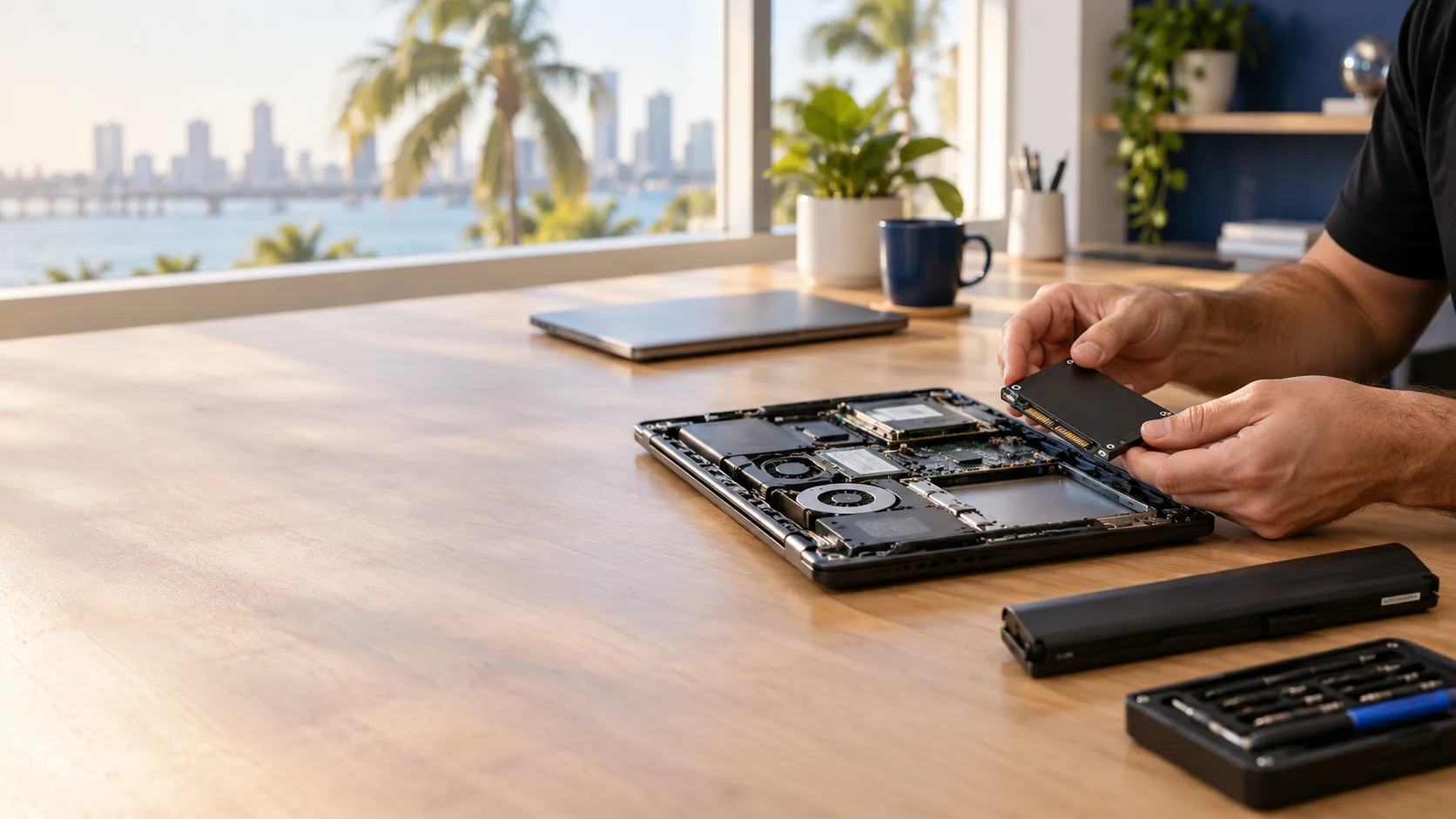
When a laptop starts failing, the question is rarely just "can it be fixed?" Almost anything can be fixed. The real question is whether fixing it is worth the money, and whether the laptop will still do its job well after the repair.
This guide walks through the factors we look at when helping Miami homes and businesses decide between repairing a laptop and replacing it: age, repair cost, storage health, battery, screen, performance and, most importantly, what happens to your data.
The Short Answer
- Repair usually makes sense when the laptop is less than four or five years old, the problem is a single component, and the repair costs well under half the price of a comparable new laptop.
- Replacement usually makes sense when the laptop is older, has several problems at once, cannot run a supported operating system, or the repair would cost close to the price of a new one.
- Either way, protect your data first. The decision about the laptop can wait. The decision about your files should not.
Before Anything Else: Protect Your Data
Whether you repair or replace, your documents, photos, emails and business files are often worth more than the laptop itself. Before you reset the computer, send it somewhere or buy a new one, make sure you know where your important data is and whether it is backed up.
- If the laptop still turns on, copy your most important files to an external drive or cloud account.
- If it will not start, avoid repeated power cycling, resets or "repair" tools that may overwrite data.
- If the drive is clicking, freezing or disappearing, stop using the computer and get it evaluated.
If your laptop suddenly stopped working and you are not sure where to start, read What to Do When Your Computer Suddenly Stops Working before trying anything drastic.
How Old Is the Laptop?
Age is not everything, but it sets expectations. As a general guide:
- Less than 3 years old: repair is usually the right call, especially if the laptop was a good-quality model to begin with. Check whether it is still under warranty first.
- 3 to 5 years old: this is the gray zone. A targeted repair or upgrade can often extend its useful life by several years.
- More than 5 years old: repair only makes sense if the fix is inexpensive and the laptop still meets your needs. Otherwise, the money is usually better spent on a replacement.
For Windows laptops, also check whether the computer can run Windows 11. Microsoft ended regular support for Windows 10 in October 2025, so an older laptop that cannot be upgraded may no longer receive regular security updates. For a business computer that handles client or financial information, that alone can be a reason to replace it.
Compare the Repair Cost With the Replacement Cost
A common rule of thumb: if the repair costs more than about half the price of a comparable new laptop, replacement deserves serious consideration.
When comparing, include the full picture:
- The cost of the part and the labor
- How long the laptop is likely to last after the repair
- Whether other components are close to failing too
- The cost of setting up a new laptop, moving data and reinstalling software
- The time your team loses while a computer is out of service
The last two points are easy to overlook. A new laptop is not ready to work the moment it comes out of the box, especially in an office where it needs email, printers, shared folders and specialized applications.
Storage: Failing Drive or Just a Slow One?
The storage drive is one of the most important parts of the decision, because it is where your data lives.
- Old hard drive (HDD) that is simply slow: replacing it with an SSD is one of the most effective upgrades available and can make an older laptop feel dramatically faster.
- Drive showing signs of failure: freezing, clicking, very slow file access, disk errors or a laptop that sometimes does not detect the drive. Here, the priority is getting the data off safely before anything else.
- Drive that has already failed: the laptop itself may still be perfectly repairable, but data recovery becomes a separate question.
In many cases, the existing drive can be cloned to a new SSD, moving Windows, installed programs, settings and files to the new drive without rebuilding the laptop from scratch. If you want to understand when that makes sense, see What Is Disk Cloning?
Battery: Usually Worth Replacing
A laptop that only lasts an hour away from the charger, shuts down unexpectedly or shows a battery warning often just needs a new battery.
- Repair makes sense when the rest of the laptop works well and a compatible battery is available.
- Get it checked promptly if the battery is swollen, the case is lifting, or the trackpad or keyboard is being pushed up. A swollen battery should not be ignored.
- Consider replacement if the battery is one of several problems on an older laptop.
Screen: Depends on the Model
A cracked or failing screen is one of the most visible problems, and its cost varies widely depending on the model.
- On many standard laptops, a screen replacement is reasonable and worth doing.
- On touchscreen, high-resolution, 2-in-1 or premium thin models, the screen can be one of the most expensive parts of the laptop.
- If the screen works but is only flickering or dim, the issue may be a cable, connection or setting rather than the panel itself.
If the laptop will mostly sit on a desk, connecting an external monitor can also be a practical short-term option while you decide.
Performance: Slow Does Not Always Mean Old
A slow laptop is not automatically a laptop that needs to be replaced. Common causes include:
- An old hard drive instead of an SSD
- Not enough memory (RAM) for how you use it today
- Too many startup programs, outdated drivers or unwanted software
- Overheating caused by dust or worn thermal paste
- Malware or a damaged Windows installation
Many of these are solved with cleanup, maintenance or hardware upgrades such as an SSD or additional RAM. One thing to check first: on many newer thin laptops, the memory is soldered to the motherboard and cannot be upgraded. In that case, if the laptop simply does not have enough RAM for your work, replacement may be the more realistic option.
Can Your Data and Setup Be Moved?
This is often the deciding factor for businesses. A laptop is not just hardware; it contains a working setup that took time to build.
Before replacing a laptop, consider:
- Documents, desktop files, photos and downloads
- Email accounts, signatures and archived mail
- Browser bookmarks and saved settings
- Installed applications and their license keys
- Specialized software that may be difficult to reinstall or reactivate
- Printer, scanner and network drive connections
If all of that can be moved cleanly, replacing the laptop becomes much easier. A professional PC migration and new computer setup transfers your data, configures the new system and connects your peripherals so it is ready for daily work.
If the setup is complex or the software is hard to reinstall, repairing the existing laptop or cloning its drive to new storage may be the smarter move.
Signs It Is Time to Replace the Laptop
- The repair would cost close to the price of a comparable new laptop
- Several components are failing at the same time
- It cannot run a currently supported operating system
- Parts are no longer available or are unreasonably expensive
- It no longer meets the demands of your work, even after upgrades
- There is significant physical damage, such as a damaged motherboard or liquid damage affecting multiple parts
Signs a Repair Makes More Sense
- The laptop is relatively new and was a good-quality model
- The problem is limited to one part, such as the battery, screen, keyboard or drive
- An SSD or RAM upgrade would solve the performance problem
- Your setup includes specialized software that would be hard to move
- The repair costs a fraction of a replacement
Where to Get Your Laptop Fixed
Once you decide a repair is worth it, you generally have three options:
- The manufacturer: the right first call if the laptop is still under warranty, although it often means shipping the device and waiting.
- A repair shop: you drop off the laptop and pick it up once the work is done.
- An on-site technician: the technician comes to your home or office, evaluates the laptop at your location and explains the options before any work begins.
For businesses, on-site service means your device and your data do not have to leave the office, and the technician can also check related issues like printers, Wi-Fi or network connections at the same time.
How We Help You Decide
When we evaluate a laptop through our on-site computer and laptop repair service, we look at the whole picture, not just the part that failed:
- The actual cause of the problem
- The condition of the drive and whether your data is at risk
- Battery, screen and overall hardware condition
- Whether an upgrade would solve the problem
- An honest recommendation on whether to repair, upgrade or replace
If replacement is the better option, we can help with the new laptop setup and data migration. We will not recommend a repair that is not worth the money. If you want to know what an on-site visit costs, see How Much Does On-Site IT Support Cost in Miami? Our rates are reviewed from time to time, so we always confirm the current price with you before any work begins.
What to Do With the Old Laptop
If you decide to replace it, do not just throw the old laptop in a drawer or the trash. Make sure your data has been moved and the drive has been securely erased before the computer is given away, sold or recycled. Our computer recycling and reuse service can help with that last step.
Frequently Asked Questions
Is it worth repairing a 5-year-old laptop?
Sometimes. If the problem is a single component, such as the battery or drive, and the laptop still meets your needs, a repair or SSD upgrade can extend its life. If it has several problems or cannot run a supported operating system, replacement is usually the better investment.
How do I know if the repair is too expensive?
A common guideline is to consider replacement when the repair costs more than about half the price of a comparable new laptop. Also factor in how long the laptop will last after the repair and the cost of moving to a new one.
Will I lose my files if I replace my laptop?
Not if the data is moved correctly. Files, email, bookmarks and many settings can be transferred to a new laptop. If the old drive is failing, the data should be copied as soon as possible.
Can a slow laptop be fixed instead of replaced?
Often, yes. Replacing an old hard drive with an SSD, adding RAM where possible, cleaning up startup programs and fixing overheating can make a significant difference.
Should I replace the battery or the whole laptop?
If the rest of the laptop works well, replacing the battery is usually the better choice. A swollen battery should be checked promptly.
Do you repair laptops on-site in Miami?
Yes. We provide on-site laptop and desktop repair across Miami-Dade and selected Broward cities. Availability is confirmed based on schedule, distance and service type.
Not Sure Whether to Repair or Replace?
Tell us what is happening with your laptop, how old it is and how you use it. We will help you make the decision that makes sense for your budget and your data, before any work begins.
Contact Miami Tech Emergency or call (305) 873-0480. Hablamos Español.